Restore Using HTML Links
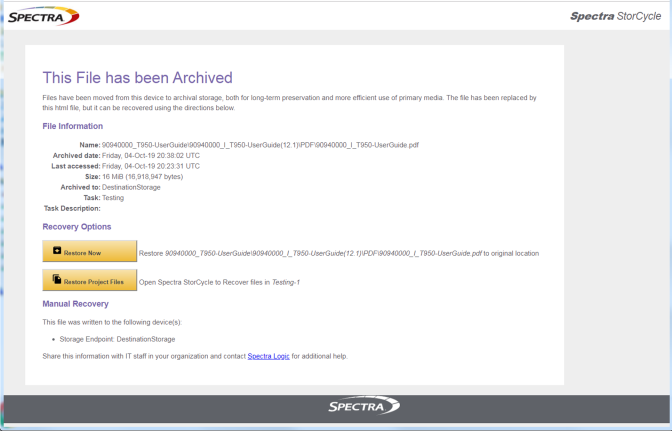
If you selected Remove Source File: create HTML link as the Replacement Option when you created the Migrate / Store Project (see Step 2), you can open the HTML file present in the original file location for shortcuts to restore an individual file or all files that were migrated / stored in the same project.
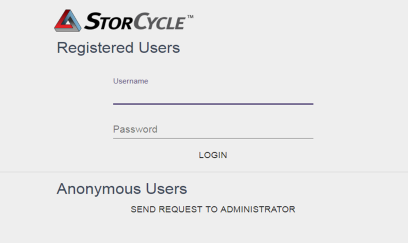
Click Restore Now to restore the individual file or Restore Project Files to restore all files in the Migrate / Store project. The Spectra StorCycle Solution login screen displays.
|
Note:
|
If an SSL Certificate has not been added to the StorCycle solution, you may get a warning from the browser that the site is not secure. |
If you are a registered user, log in to complete the restore. The Restore wizard runs with all fields populated to restore the requested file(s). See Restore Wizard—Files to Restore for more information.
If Active Directory / LDAP was configured with Allow any Active Directory / LDAP user to restore selected (see Configure Active Directory / LDAP), any Active Directory / LDAP user on the domain can restore files even if they are not configured as a StorCycle user. Log in using your Active Directory credentials.
|
Note:
|
Anonymous Active Directory /LDAP users are not allowed. |
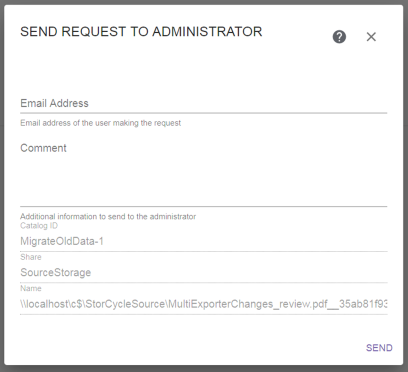
If you are not a registered user, click Send Request to Administrator. The Send Request to Administrator screen displays.
Enter your Email Address and, if desired, a Comment, and then click Send to email the request to the Spectra StorCycle solution Administrator.
|
Note:
|
To use this form, SMTP must be configured (see Configure SMTP) and an email address must be configured for the Administrator user (see Edit a User). |